SCOM Pulse

Your everyday SCOM console. In your browser.

Investigate alerts, explore health, deploy and manage Windows agents, and schedule maintenance from one web console. Works with your existing SCOM environment, without changing how your agents report.

  • One MSI on one Windows server
  • No additional software on monitored computers
  • 30-day trial, no key
The SCOM Pulse Alert Center in dark mode: filters for severity, type, resolution state and management pack down the left, and a sortable grid of 28 active alerts showing source computer, alert name, type, resolution state and owner.
The Alert Center — 28 active alerts, filtered and ranked. Click any screenshot to see it full size.

Building SCOM tools since 2007

Investigate alerts and take action.

See why an alert fired, read the management pack knowledge, and explore the affected object’s health.

Acknowledge, assign, and comment from the alert page. Put an object into maintenance mode, create an override, or run a task. Explore performance history and dashboards to understand what needs attention.

Understand what needs attention

See the alert explanation, management pack knowledge, and related open alerts together.

Real administration, not just a read-only view

Discover Windows computers and push the agent to them, with live progress per computer. Repair, uninstall, reassign to another management server, approve pending agents. Import management packs, edit groups, user roles, Run As bindings and notification subscriptions.

The people who only need to look something up

Service owners, on-call engineers and application teams get a URL instead of a console install. Read-only shareable dashboard links go further still — a link, not an account. Sign-in is Windows Authentication, scoped by the SCOM user roles people already have. How access control works →

A look at the product

Real workflows, not a feature list

Screenshots from a live management group, in Pulse’s dark mode.

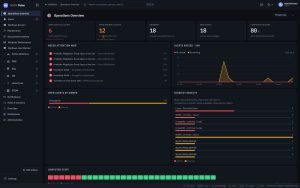
The SCOM Pulse Operations Overview dashboard: tiles for open critical alerts, open warning alerts, unowned alerts, new alerts and percentage of healthy computers, above a 24-hour alerts-raised chart, an alerts-by-owner bar, a computer state grid and a noisiest-objects list.
Operations Overview. What is open, what nobody has picked up, what is unhealthy and which objects are the noisiest.
The Performance tab of a Windows computer in SCOM Pulse, showing a grid of time-series charts for Available MBytes, Pages/sec, percentage memory used, processor time and other counters, with range buttons for 6 hours, 24 hours, 3 days, 7 days, 30 days, 90 days and 1 year.
Performance. Live counters from the management group, plus historic ranges out to a year when the data warehouse is enabled. Pin the ones you care about.
An alert detail page in SCOM Pulse showing the alert description, a "why this fired" explanation of the monitor and its lifecycle, the management pack knowledge with summary, configuration and causes, and a right-hand column with assignment, next steps, comments and related open alerts.
Alert investigation. Why it fired, the management pack knowledge, the related alerts, and the next step — on one page.
The Health tab of the Windows computer PRINT01 in SCOM Pulse: 26 monitors with three rollups unhealthy. Entity Health and Availability are critical because the Windows Computer Role Health Rollup is critical; the tree continues into the related PRINT01 and PRINT01 (SMB) objects down to the critical Server Service: Firewall Status monitor. Each row names the object it belongs to and has an actions menu.
Health Explorer, to the real cause. PRINT01 is red because a service on a related object is down. The tree follows the dependency into that object, and every row names the object it belongs to.

Administration

Deploy Windows agents from your browser

Name the Windows computers or discover them in a domain, choose the management server and its failover, pick the account that installs, and push. Each computer reports back as it goes. If an installation fails, Pulse displays the error returned by the management server.

  • Discover computers in a domain, or paste a list
  • Repair, uninstall, and reassign to another management server
  • Approve or reject pending agents, and toggle agent proxy
  • Management packs, groups, user roles, Run As and subscriptions

Windows agents only. UNIX/Linux agent push and uninstall, agent upgrades and network-device discovery stay in the Operations console — the full list is on the product page.

The Install agents wizard in SCOM Pulse: a five-step flow for computers, management servers, options, account and install, showing a box for computer names, a primary management server with optional failover servers, options to verify each computer during discovery and enable agent proxy, and a choice between the management server action account and another domain account.
Install agents on Windows computers. Up to 200 per push; five or more asks for a typed confirmation.

How it fits

It goes on a server you already have

Install SCOM Pulse on a Windows management server or a Windows server with the Operations console installed. Configure its connection to your management group, then open Pulse in your browser.

  1. Run the MSI. Signed, and it configures nothing on its own.
  2. Fill in one Configure window. The management server and a service account.
  3. Open the site. A 30-day trial starts automatically — there is no key to request.
Supported SCOM
Operations Manager 2016 UR7 and later, 2019, 2022 and 2025.
Agents
No additional software to install on monitored computers.
Database
Pulse caches selected SCOM data in its own embedded database on the Pulse server. There is no separate database server to provision. Storage and sizing detail →
Sign-in
Windows Authentication. Users are never asked to enter a password into Pulse.
Outbound traffic
The application makes no calls to the internet — no CDN, no external fonts, no telemetry.
Monitoring Pulse
A sealed management pack ships with the product so SCOM can monitor Pulse itself. Importing it stays your decision.

Pricing

Priced by agent count, per year

The same agent-based model as the rest of the SCOM2K7 range. No per-user seats.

Small Business
Up to 500 agents
$5,000
per year
Medium Business
Up to 1,500 agents
$7,000
per year
Large Business
Up to 4,000 agents
$9,000
per year
Enterprise
Above 4,000 agents
Contact us

Annual subscription licences. *3 & 5 year subscriptions available, which carry overall discounts of 15% and 25% respectively.

Also from SCOM2K7

Focused utilities

Three single-purpose tools for teams that need one job done well rather than a whole console. They are sold and licensed separately from Pulse.

Pulse also schedules maintenance — which one do you want? Pulse covers maintenance windows as one of many workflows, alongside alerts, health, performance and administration. The Maintenance Mode Scheduler does that one job at a lower price. If scheduling windows is the whole requirement, the Scheduler is the cheaper fit; if your team also lives in the Operations console all day, Pulse replaces more of that day. More on how they compare.

Building SCOM tools since 2007

Organisations that have licensed SCOM2K7 products over the years. SCOM Pulse is newly released and these logos do not refer to it.

From the blog

Notes, tutorials and news for people who run Operations Manager.

Try SCOM Pulse against your own management group

Request the trial and we will email you the latest build: a signed MSI and four PDF guides. Install it on a management server or a console machine, and a 30-day trial starts on its own, with no licence key to enter.